


Summary
- 1) Key Takeaways
- 2) 1. Enable Camera Access in Settings
- 3) 2. Open Camera App for Quick Scanning
- 4) 3. Use Control Center for QR Code Reader
- 5) 4. Adjust Lighting for Better Scanning
- 6) 5. Scan from Different Angles
- 7) 6. Keep iOS Updated for New Features
- 8) 7. Use Third-Party QR Code Scanners
- 9) 8. Hold on the QR Code if received by email
- 10) Conclusion
- 11) Frequently Asked Questions
Key Takeaways
- One of the essential tips for mastering iPhone QR code scanning is to ensure your camera can read codes by enabling the ‘Scan QR Codes’ option and checking app permissions.
- You can scan QR codes in a snap with the Camera app or even faster with the Control Center shortcut.
- Bright light makes scanning more accurate. Don’t hesitate to fire up your camera’s flashlight or place the QR code under a light when necessary.
- Position your iPhone at the optimal angle and distance from the QR code for the best scan, steering clear of any glare or reflections.
- Update your iOS for the newest scanning features and secure every QR code interaction.
- Go for third-party QR code scanner apps if you want some cool special functions, but take the integrated scanner for a whirl first, for convenience and privacy’s sake.
- In the case of getting an eSIM via a QR code (like Ubigi eSIM data plans), you can hold on the QR code received by email. It will trigger the code to be read and offer you different actions.
iPhone QR code scanning allows you to scan or read QR codes using your phone’s camera. Simply aim your camera at any QR code and receive instant access to links, Wi-Fi, or contact information.
Most iPhones rely on the native Camera app for scanning. All you require is a steady hand and good lighting.
To assist you in utilizing this new feature, this “Essential Tips for Mastering iPhone QR Code Scanning” article provides straightforward instructions and suggestions.

1. Enable Camera Access in Settings
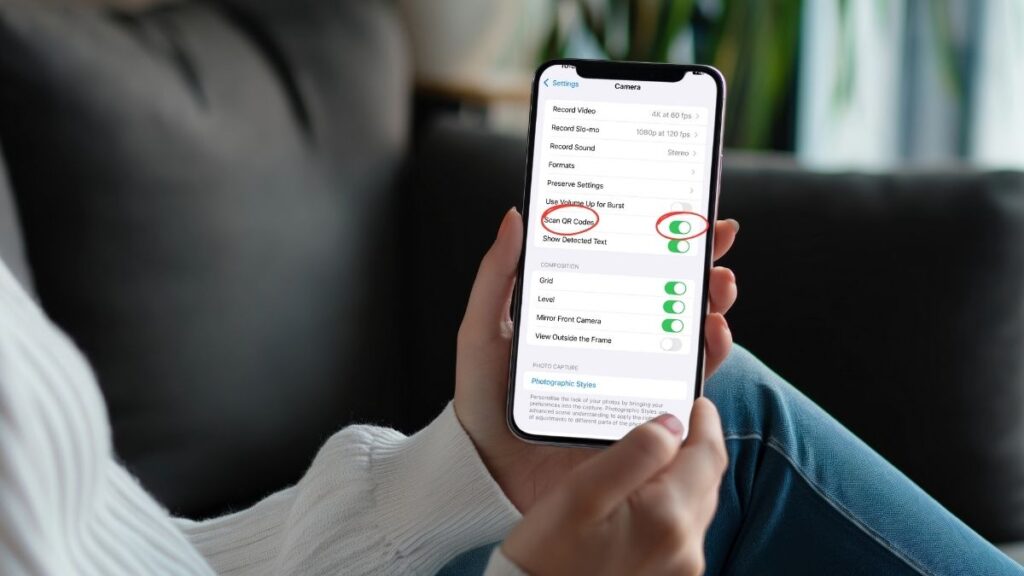
Assists you in enabling QR code scanning on your iPhone. First, pop into your Settings app and scroll to Camera. Allow qr code scanning here.
Enable ‘Scan QR Codes’ to utilize the in-app scanner. For QR code scanner apps, ensure you’ve permitted camera access. You may turn camera access off in Settings by selecting each app and flipping the camera toggle.
If you’re in a browser, tap the three dots or ‘Aa’ icon in the address bar, then open “Website Settings” to toggle on the camera. Ensure that your privacy settings don’t block the camera for any app you wish to deploy it with.
Others have this annoying glitch where the camera functions for photos but not scanning. If this occurs, additional measures might be necessary, as updates or restarts might not assist.
2. Open Camera App for Quick Scanning
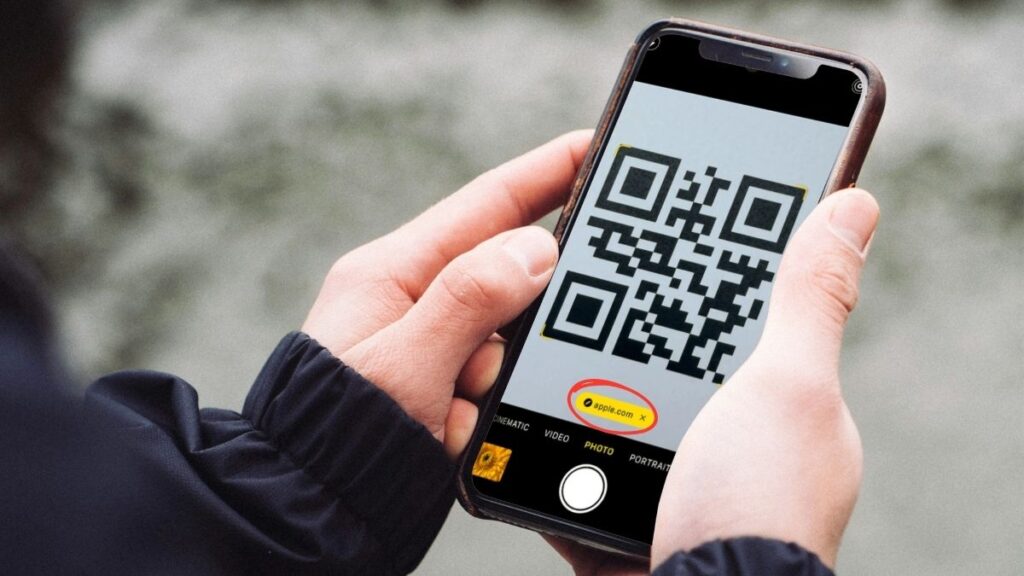
Open Camera App for Quick Scanning allows you to bypass additional steps and jump straight to scanning. You can launch the Camera app directly from the lock screen, no need to unlock your phone or search for a separate app required. Just swipe or tap, and you’re set.
Typically, just holding your iPhone over a QR code for two or three seconds does the trick. The app will identify the code and display a link, website urls or action item on your screen. You can switch between photo and scanning modes seamlessly, so taking a picture or scanning a menu feels just as fluid.
For optimal scanning, hold the code in a well-lit area without glare. Ensure the entire code is within the viewfinder and stabilize your phone. If the code is out of focus, too small, or impaired, the app may misread it.
3. Use Control Center for QR Code Reader
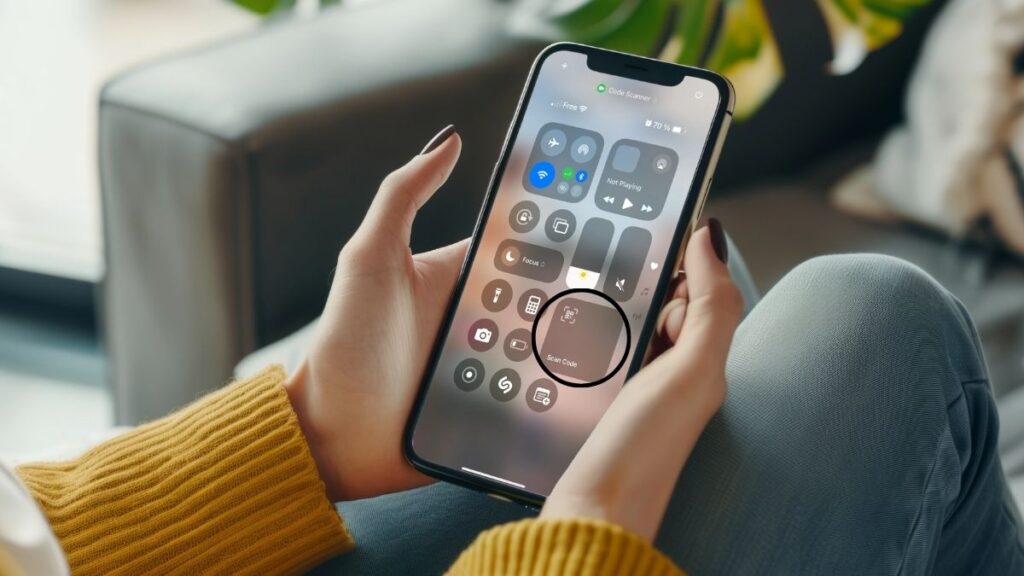
Control Center makes QR code scanning snappier, should you find yourself doing it frequently. Swipe down from the top right corner and Control Center pops up, a tap on the QR code scanner icon and you’re off and running.
No more scrambling for the Camera app on your Home Screen or Lock Screen, which is a time-saver in hectic moments or crowded areas. For faster access, add the QR code scanner to your Control Center in Settings, so the icon is always within easy reach.
It’s worked great everywhere–inside, outside, or in dim lighting, courtesy of the handy flashlight. A lot of users on newer iPhones report this is their preferred method to scan codes because it just feels fluid and dependable.
4. Adjust Lighting for Better Scanning
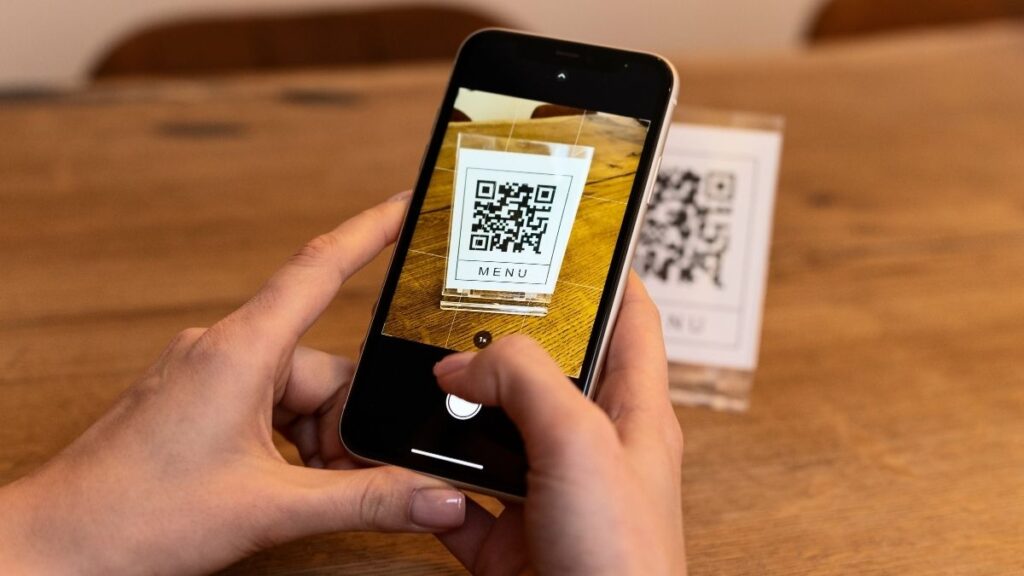
Adjust Lighting for Better Scanning provides you a distinct advantage anytime you require dependable QR code scans. Good lighting assists your iPhone camera in catching every nuance of the code, so you have less errors.
Soft even light works best here, as harsh light or direct sun can produce glare that obfuscates regions of the code. For instance, scanning a café or restaurant menus goes better when you’re sitting near a window with diffused daylight, as opposed to being under a bright lamp.
If you are in a dim region, use your iPhone’s flashlight to illuminate the code. Simply tap the flashlight icon in the camera app.
That said, remember glare–occasionally, rotating the phone or repositioning the QR code minimizes shiny areas. Avoid positioning the code under a spotlight or on a shiny table, for example. Others simply turn down their phone’s screen brightness as well.
5. Scan from Different Angles
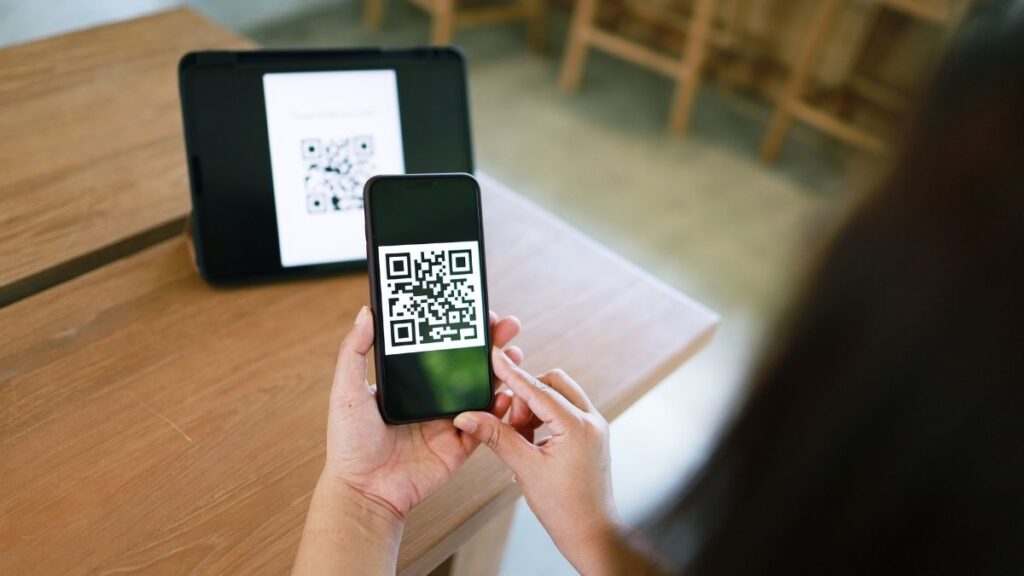
Scan from Different Angles provides you more options to scan QR codes, particularly when you encounter ones that won’t scan immediately. Experiment with different angles; this can help your camera capture or lock onto the code.
Just experiment. You can always move your phone closer or pull back and see what works best. At times, twisting your phone a bit causes the scanner to scan the code quicker, as either too much light or shadow can disrupt things.
The camera continues scanning the image, so even slight movements can alter the outcome. There are QR codes designed to display different links or messages from specific angles and others with patterns that bisect the code.
Just scan 2 codes on top of each other; different angles might return different results. It all relies on your phone’s camera, the design of the QR code, and the lighting.
6. Keep iOS Updated for New Features
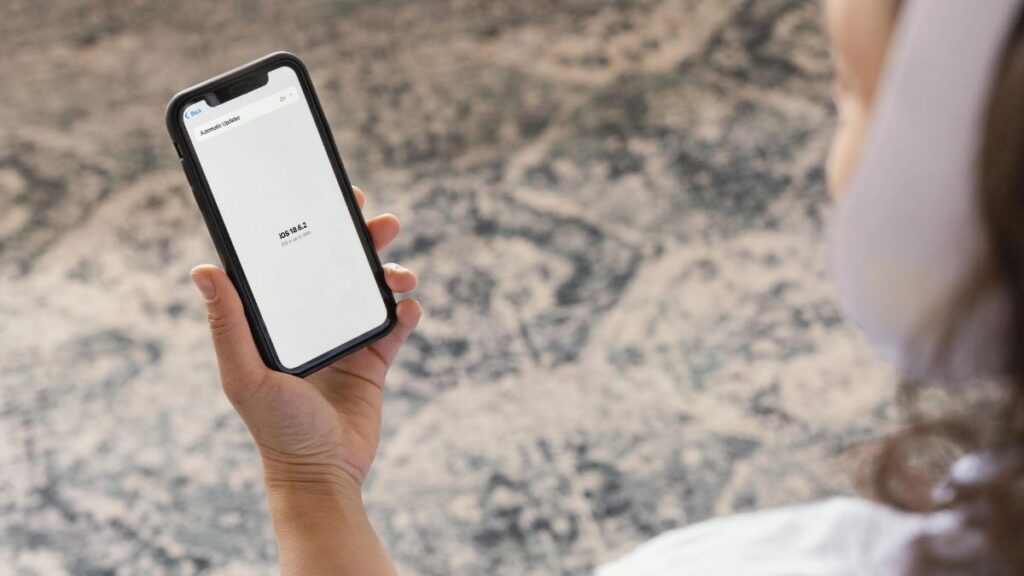
Keep ios version updated for QR scanning perks. You get new features and improved security, along with patches for bugs. By checking for updates regularly, your iPhone remains prepared for innovative QR code varieties. It will ensure you don’t lose access to cutting edge tech, such as scanning vibrant codes or sophisticated information layouts.
Updates frequently enhance performance and battery, which makes day to day use more fluid. Looking over release notes makes you notice changes in scanning, like new privacy settings or faster scans. Your iPhone can update by itself, so you don’t have to go in and manually check.
That said, updates can change around how stuff works, which could be a little hard to adjust to. After all, sometimes new versions conflict with old apps or tools. If your device is older, you may run into a wall with its latest updates.
7. Use Third-Party QR Code Scanners
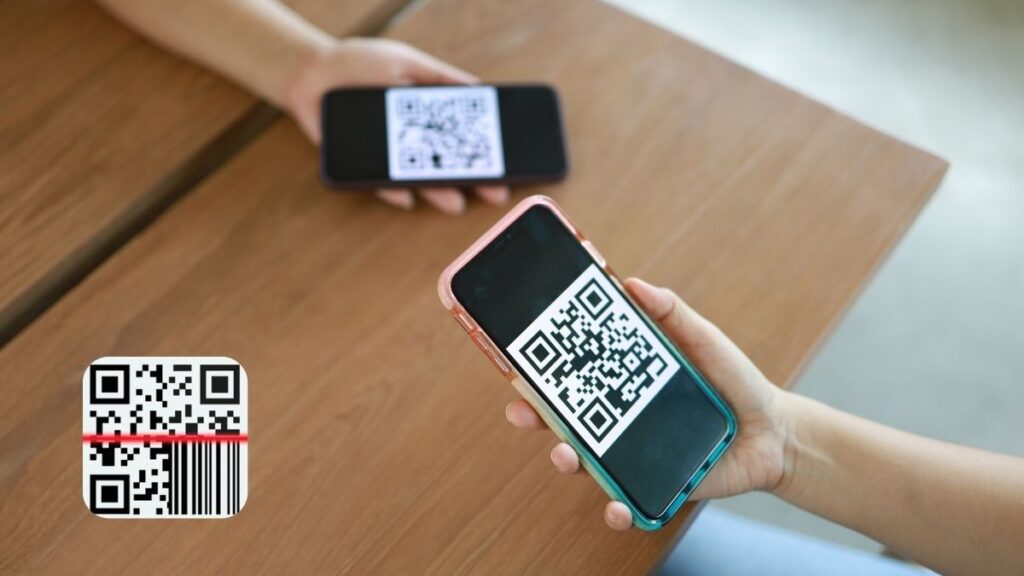
Employ third-party QR code scanners to access functionality far beyond your device’s native camera app. A lot of apps in the App Store allow you to scan QR codes from your photo library, which is useful if you saved a code as an image.
A few apps offer you manual focus, auto-detection and flash adjustments. It comes in handy when scanning in low light or when the code is somewhat faded. A lot of users test these apps in cases when the default camera has a hard time or if their phone can’t install the latest system update.
There are tons of options for iOS and Android smartphones and even Windows or macOS. You aren’t tied to a single manufacturer or platform. Make sure you check ratings and reviews first, as some apps can be buggy or slow. Still, begin with your phone’s default scanner to keep things simple and safe.
8. Hold on the QR Code if received by email
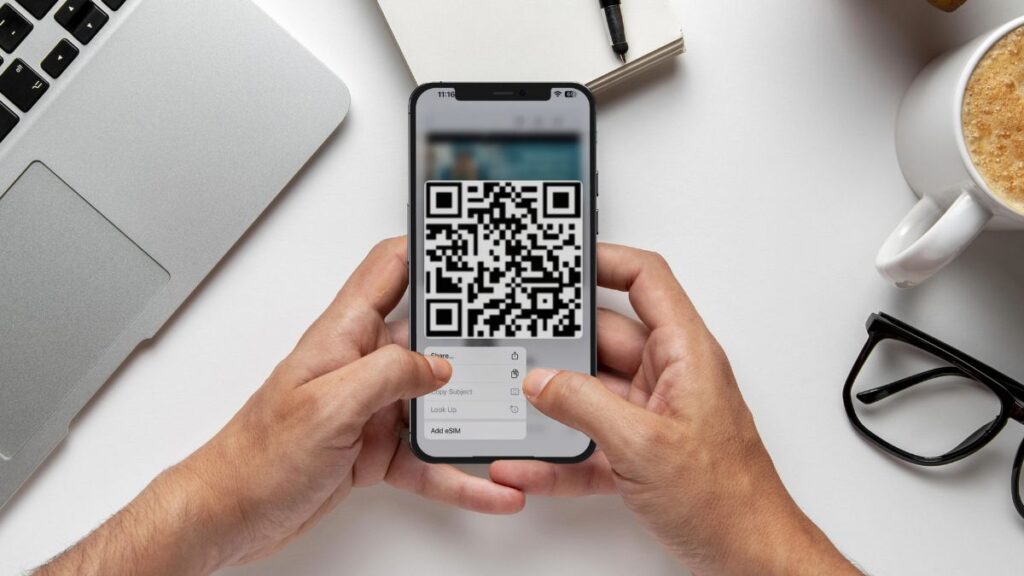
Hold on the QR code received in e-mail, and bang, quick options open up (such as installing Ubigi’s eSIM on your iPhone or iPad). When you hold on the QR code, for example, your phone scans it and recommends actions like adding a mobile plan.
If your QR code doesn’t show, clear your cookies and cache or change your mail to display images. Certain email apps default to blocking images, which can obscure the QR code.
Before you scan, verify where the email came from. A legitimate QR code from a reputable source will appear crisp, with nice contrast, not smudged or tampered with.
If you still have trouble, try a third-party QR scanner or update your device’s system. Sometimes scanning is difficult if the code is damaged or the email contorts it. This caution keeps your device safe from phishing or fake QR codes.
Conclusion
You now know how to scan QR codes with your iOS devices. While your camera can scan most QR code types fast, the Control Center utility provides you an alternative.
Nice light assists the camera in scanning the codes quickly. Experiment with angles on those tricky codes.
Best scan tools, keep your iOS fresh. Other third party apps offer additional scan features.
If you receive a QR code by email like an Ubigi eSIM to get a data plan, simply press and hold to scan.
These tips save minutes and reduce pain, whether you scan QR for business, wanderlust, or retail therapy. Give ’em a whirl the next time you see a code.
Got your own scan tips? Send your comments via our customer support form or via social media to assist other new trick seekers.
We hope that this “Essential Tips for Mastering iPhone QR Code Scanning” helped you !

Frequently Asked Questions
How do you enable QR code scanning on your iPhone?
Head over to Settings > Camera. Ensure ‘Scan QR Codes’ is enabled. This enables your iPhone to detect and scan QR codes via the camera app.
Can you scan QR codes without a third-party app?
Well, sure, you can scan QR codes natively with your iPhone’s regular camera app. No additional apps required unless you want additional features.
Why is your iPhone not scanning QR codes?
See if camera access and QR code scanning are enabled in Settings. Ensure adequate lighting, and cleanse your lens.
How can you scan a QR code received by email?
Touch and HOLD the QR code image in your e-mail. A pop-up will provide you with either scanning or link options. Click through to open the link or action.
Does updating iOS improve QR code scanning?
Indeed, having your iPhone up to date guarantees the optimum QR code scanning experience. Updates are frequently shipped with scanning enhancements and new features.
What should you do if your iPhone struggles to scan a QR code?
Play with the light, play with the angle, get your iPhone closer. Ensure the QR code is completely visible and not blurry.
Are third-party QR code scanner apps safe?
Select trusted apps from the official App Store. Check out reviews and app permissions prior to downloading. This aids in securing your privacy and device.








 How to check eSIM compatibility
 How to check carrier unlocking