


Summary
- 1) Key Takeaways
- 2) Introduction
- 3) What is an eSIM and why it matters for iPhone users
- 4) How to Activate eSIM on iPhone
- 5) How to Transfer eSIM from One iPhone to Another
- 6) Transferring eSIM to a New iPhone: What You Need to Know
- 7) Why Choose Ubigi eSIM for iPhone Users
- 8) Conclusion
- 9) Frequently Asked Questions
Key Takeaways
- With this article, discover the different “Steps to Activate and Transfer eSIM on Your iPhone”. Here’s how to activate an eSIM on iPhone for more flexibility, multiple profiles and cheap data plans abroad.
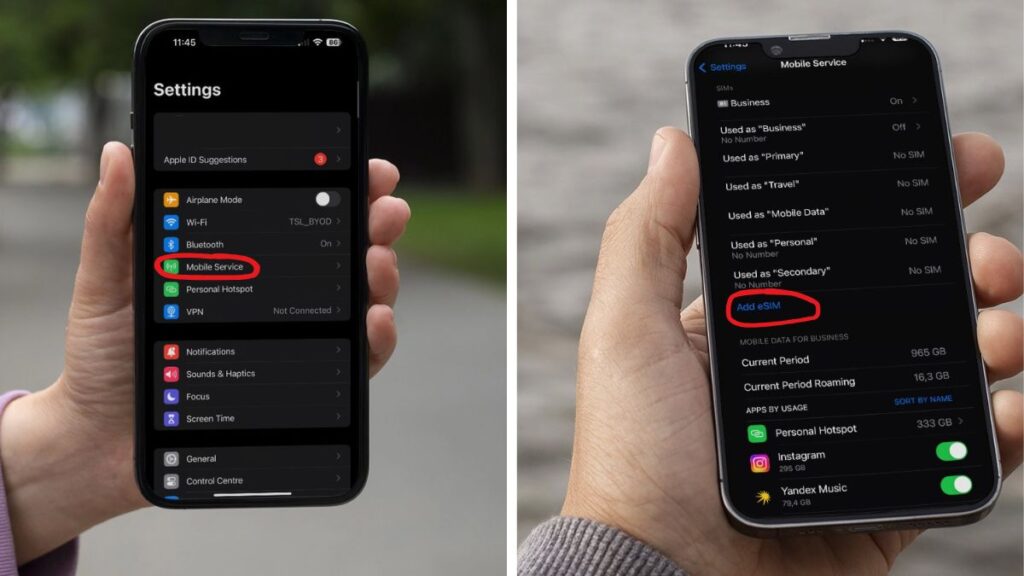
- It’s easy to activate an eSIM. You just pop into Settings, tap Cellular and add your new eSIM by scanning a QR code or by your carrier’s activation details. You could also download your eSIM from an app like Ubigi. Then turn it on in your data parameters.
- If you’re switching iPhones, Apple’s transfer tools make it simple to transfer your eSIM but some carriers may not allow you to.
- Always backup your iPhone data and make sure both devices have the latest iOS before transferring your eSIM to avoid any data loss or technical issues.
- Ubigi eSIM boasts worldwide coverage in more than 200 destinations, rapid activation, and simple online management. It’s ideal for travelers.
- Going with a provider such as Ubigi means you’ll sidestep roaming fees. When it’s time to upgrade or replace your iPhone, you can swiftly re-install your eSIM profile following this tutorial.
Introduction
Activating eSIM on iPhone could not be simpler, it only takes seconds and a compatible carrier. With an eSIM, there’s no need for a plastic SIM. Just activate your eSIM on your phone and your data plan get started right away.
This swap is excellent for travelers and anyone who desires less hassle with phone switching. Ubigi is your trusted global eSIM, keeping you online with ease. Discover simple instructions in this “How to activate your eSIM on an iPhone” tutorial.

What is an eSIM and why it matters for iPhone users
An eSIM (embedded SIM) is a small chip built into your phone. It replaces the need for a physical SIM card. Instead of swapping plastic cards, you can set up your number and/or data plan directly on your device. This digital setup lets you keep multiple numbers or data plans on one iPhone. This solutions is ideal for work and travel.
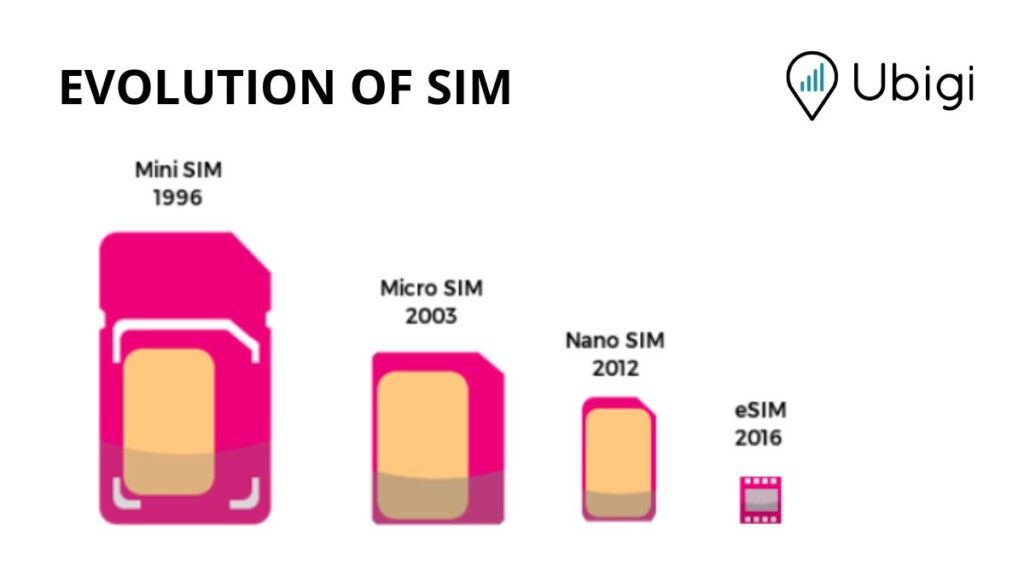
The biggest perk of eSIMs is convenience. You can store up to eight profiles on the latest iPhones and switch plans instantly with a few taps. No more SIM eject tools or tiny chips to lose. Plus, eSIMs support eco-friendly tech by reducing plastic waste.
Introduced in 2012, eSIMs are now standard in iPhones from XS and XR onward. In the US, models like the iPhone 14 and above are eSIM-only, making activation faster and fully digital.
With Ubigi’s data plans available in 200+ destinations, you can stay connected anywhere. Skip roaming fees and switch data plans easily during business trips or vacations. It is a true seamless connectivity wherever you go.

How to Activate eSIM on iPhone
Activating an eSIM on your iPhone is simple, but your device must meet a few conditions first. Only iPhone XS, XR, and later models support eSIM. Make sure your phone is unlocked and updated to the latest iOS for full functionality. This will ensure quick transfer from older iPhones or Android (iOS 26+). You’ll also need a stable Wi‑Fi connection to complete installation.
Step-by-Step Activation
There are multiple options for the eSIM installation, like using a QR code or carrier direction activation. With Ubigi, you will have two scenarios :
- Via the Ubigi App :
1. Download the app.
2. Create your account and purchase your data plan
3. Then install your eSIM following the steps. - Via the Ubigi website (See the tutorial “How to purchase and install a Ubigi eSIM on an iPhone using a QR code“)
1. Select your data plan and purchase it.
2. You will get a QR code by email.
3. Just scan it with your camera (or press hold on the QR code of the email) to install the eSIM. Follow the on‑screen instructions, the setup is fast and automatic.
4. Tap “Allow” to begin installing the eSIM. Once the eSIM is installed, tap “Done” to finish.
5. Go back to the email received after your purchase and click on the “Sign Up” button.
6. You will be redirected to ubigi.me (or the Ubigi app if already installed) to create your account and link your Ubigi eSIM to it. This will allow you to track your data usage and top up your plan.
Choose either a standard or travel data plan, depending on your needs, it is perfect for keeping your main number active or staying connected abroad.
How to Transfer eSIM from One iPhone to Another
Switching your eSIM to a new iPhone is simple, but knowing the process will save you time and frustration. Apple offers options to transfer your eSIM either during the initial setup of your new iPhone or afterwards via the Settings app.
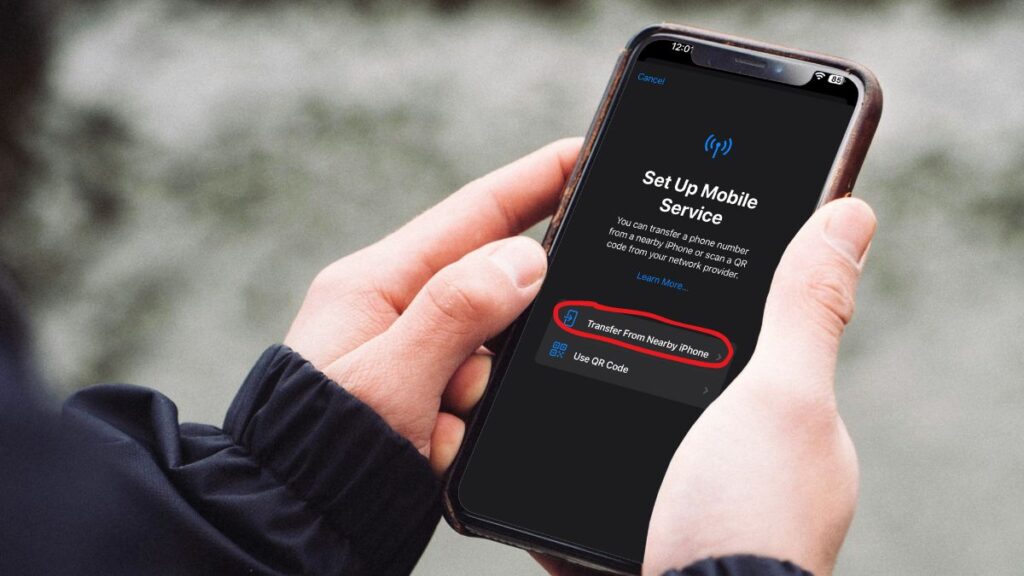
The easiest way is Quick Transfer, which moves your number and eSIM plan from your old iPhone to the new one in just a few taps. On iOS 16+, use Quick Transfer to move your plan from an old iPhone by placing both devices close together. On iOS 26+, you can even transfer your eSIM from Android.
If your phone doesn’t support automatic transfer, you can delete your Ubigi eSIM from your data parameters. Then log in to your account on the Ubigi app on your new phone. You can reinstall your eSIM up to 5 times, after which you will need to contact our support team to obtain a new eSIM. Follow the instructions to complete the transfer. This is handy if you’ve already configured your phone or want a fresh start.
In some markets, iCloud can duplicate your carrier details and phone number, making the transition even smoother. Not all carriers support this feature. If your carrier does, you can transfer from a physical SIM to eSIM or between two eSIMs directly.
Many users switch their eSIM after trading in their old phone or upgrading to a newer model. It’s important to note that some carriers may have limitations or may not support eSIM transfers at all. This can mean extra steps or the need to contact customer service.
To avoid these complications, consider using a global eSIM provider like Ubigi. With Ubigi, you can reinstall or re-download your plan on your new iPhone in seconds. Bypass carrier restrictions and ensure your seamless connectivity wherever you go.

Transferring eSIM to a New iPhone: What You Need to Know
Whether you’re upgrading your device, replacing a lost iPhone, or switching between personal and work phones, the process to transfer your eSIM is quick once you follow the basics.
Start by backing up your data to protect your contacts, apps, and messages. Make sure both iPhones run the latest iOS (ideally iOS 16 or newer) and are connected to Wi‑Fi, as transfers rely on a stable connection.
Use Quick Transfer in Settings → Cellular (or Mobile Data) → Add eSIM → Transfer from Nearby iPhone. Keep both iPhones side-by-side with Bluetooth enabled, the move takes only minutes and requires no carrier call. You can also add or swap profiles manually later from the same menu.
If your software is older, you’ll need to scan a QR code from your carrier or to reinstall it via an app. All iPhone XS, XR, and later support eSIM. iPhone 14 and newer (US models) are eSIM-only. Ensure your device is unlocked for full compatibility.
For global travelers, Ubigi offers flexible eSIM data plans you can easily reinstall or recover if your phone is lost, damaged, or replaced. Enjoy seamless connectivity anywhere.
Why Choose Ubigi eSIM for iPhone Users
Ubigi eSIM keeps you online worldwide without swapping SIM cards or worrying about coverage. With coverage in 200+ destinations, you can travel for business or leisure and stay connected on your iPhone anytime.
No more local SIM hunting or airport kiosk lines, Ubigi is borderless. Enjoy global data and keep your local number. Use maps, email, and social apps wherever you are.
Choose from prepaid data plans with no hidden roaming fees. The Ubigi app shows real-time data usage and alerts you when you’re near your limit. Via the app, you can top up in seconds. This is perfect for frequent travelers or those managing work and personal lines.
Activation is fast and easy. Just scan a QR code purchased on their website or follow the Ubigi App process. You can transfer your eSIM profile when upgrading your iPhone and even store multiple eSIMs to switch between countries or plans instantly.

Conclusion
Activate your eSIM on your Apple device for seamless connectivity without a physical SIM card. With top eSIM providers like Ubigi, you can easily manage your eSIM profile, switch plans, or perform eSIM replacement after a factory reset or device upgrade.
Follow onscreen instructions to complete the setup process quickly and avoid issues. With the Quick Transfer feature, enjoy hassle‑free moves between devices and make the most of global mobile data wherever you go.
We hope that this “Steps to Activate and Transfer eSIM on Your iPhone” article helped you!

Frequently Asked Questions
What is an eSIM on iPhone?
An eSIM is a digital SIM that allows you to activate a cellular plan without a physical SIM card. It comes embedded into your iPhone for convenience and freedom.
How do you activate an eSIM on your iPhone?
First you need to install the eSIM. Navigate to Settings > Cellular > Add Cellular Plan. Scan the QR code from a carrier like Ubigi. Complete setup by following the on-screen instructions.
Can you transfer your eSIM to a new iPhone?
Yes, you can move your eSIM through your iPhone setup with Quick Start or afterwards via your carrier’s app or QR code.
Do all iPhones support eSIM?
Nearly all iPhones starting with iPhone XS, XR and later, support eSIMs. Verify your device settings or Apple’s website for eligibility.
Is it safe to use an eSIM on iPhone?
Yes, employing an eSIM is safe. Your information is secured with your carrier and Apple’s security safeguards.
Why should you choose Ubigi eSIM for your iPhone?
Ubigi provides worldwide coverage, simple activation, and adaptable data plans. You can get it all around the world, without swapping SIM cards. It’s the only eSIM that enables you to top up without Wi-Fi connectivity or cellular credit left.
What should you do if your eSIM activation fails?
Try restarting your iPhone and verifying your internet connection. If it still doesn’t you should call your carrier or Ubigi customer support for assistance.







 How to check eSIM compatibility
 How to check carrier unlocking