


Key Takeaways
- If you are looking for the “Meaning of SOS on iPhone“, this article is for you!
- SOS on your iPhone is an integrated safety tool that assists you in rapidly reaching emergency services and broadcasting your location when necessary.
- Let’s discuss why your iPhone could be stuck on SOS mode, which could be caused by network issues, SIM card problems, carrier outages, or being abroad and roaming isn’t enabled.
- How to fix SOS mode? You can attempt some basic troubleshooting like toggling Airplane Mode, restarting your iPhone, or inspecting your SIM card.
- Resetting network settings, updating your iOS, or contacting your mobile carrier can help if basic troubleshooting doesn’t work.
- When abroad, SOS mode typically occurs if your carrier doesn’t have coverage in that region or you don’t have roaming.
- With an eSIM solution like Ubigi, you get dependable mobile data, avoid pricey roaming fees, and remain connected to local networks across several countries.

Introduction
SOS on iPhone lets you contact local emergency services quickly with a press of the power button and either volume button. You receive a loud notification and a timer, then your phone dials assistance for you.
It sends your location to your emergency contacts. For most iPhones, this functions even if your screen is locked. Here’s how to set up and use it so you can stay secure.
What Does SOS Mean on iPhone?
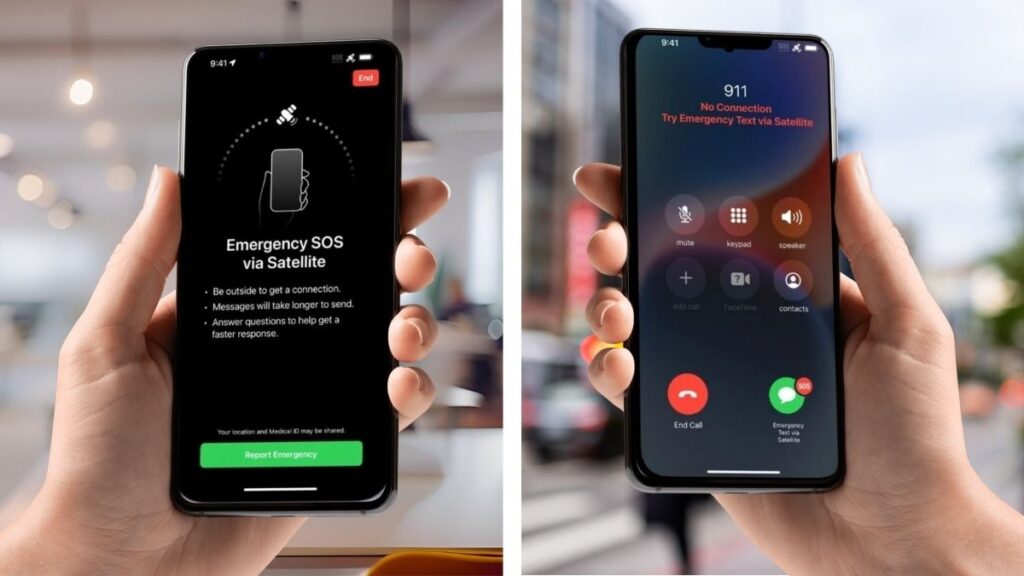
SOS on your iPhone is an integrated safety feature designed for emergencies. It allows you to contact assistance quickly in the event you’re in peril or require medical aid.
This feature functions first by immediately calling emergency services when you click the sleep/wake button five times in quick succession or if you press and hold the sleep/wake and any volume button simultaneously.
For a lot of folks, this shortcut has proved a lifesaver when minutes are precious and assistance is urgent.
When you activate SOS, your iPhone does more than dial for help. It can send your location to emergency responders and to your emergency contacts. This can accelerate your access to assistance and provide comfort to your family.
If you choose, you can configure SOS to text your location to trusted contacts after an emergency call is placed. This is helpful when you can’t talk or explain your situation.
SOS works in conjunction with other safety features already present in your iPhone. For instance, it integrates with Medical ID, so first responders have access to key health information if you’re unable to communicate. You can even add your emergency contacts and configure settings, so SOS functions the way you require.
While SOS is on iPhones running iOS 11 or newer, in certain locations, SOS might not work the same way or will not work at all, depending on local regulations and emergency services.
Some folks have inadvertently triggered SOS, resulting in rogue calls to emergency services. You can visit your settings to modify how SOS initiates so you prevent this.
Why Is My iPhone on SOS?
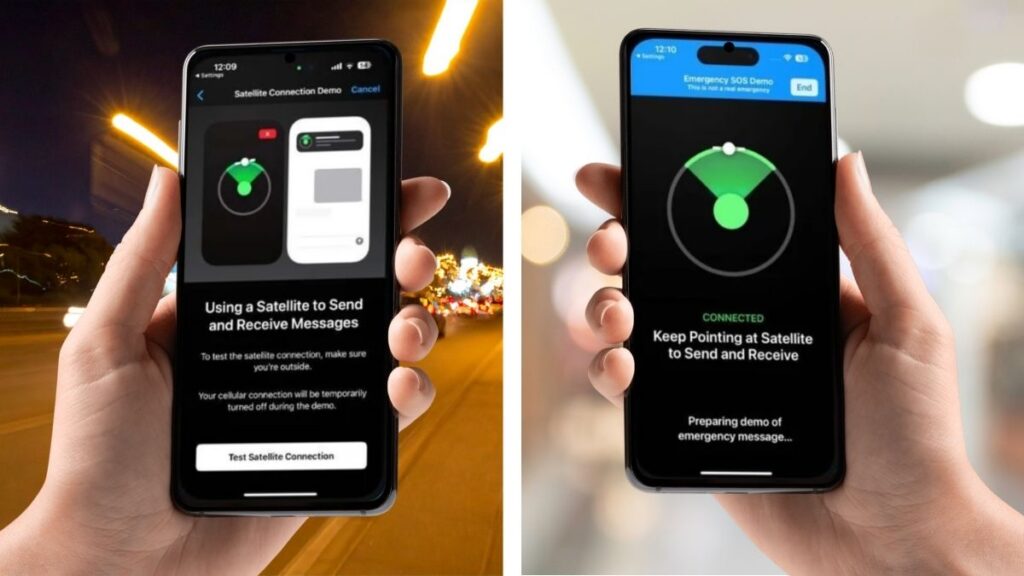
When your iPhone displays “SOS” in the status bar, it’s a sign that your phone is unable to connect to its standard network. Instead, it can just make emergency calls on any network available. This mode isn’t uncommon, as more than 75,000 users all over the world are experiencing the same issue.
Others experience it every day or every night, even with a strong signal in close proximity to cell towers. No network coverage is a primary reason. If you’re away from cell towers or in a reinforced concrete bunker, your iPhone might drop connection and revert to SOS.
Others experience this despite being in a traditionally well-covered area. SIM card issues can activate SOS mode. A worn, badly seated, or defective SIM can prevent your iPhone from locating its home network.
Several users have attempted swapping their SIM cards or another IMEI, which in some cases does help, but it’s not a permanent solution. Carrier outages are another culprit. If your network provider experiences an outage, your iPhone can lose connection and go to SOS mode.
This issue is not localized to a single carrier or specific area. It has been observed across the country. Airplane mode disables all network signals when enabled. Turning it off, forgetting to turn it off, or toggling it by accident will put your iPhone in SOS mode.
Going abroad with no roaming set up results in SOS mode. If your plan or device doesn’t support roaming, you might get only SOS even if there are local networks.
Network settings errors or glitches post update can cause SOS mode. Others observed the problem immediately after installing iOS 17.x.x. Even hooking up to wifi doesn’t always do the trick.
How to Fix SOS Mode on iPhone
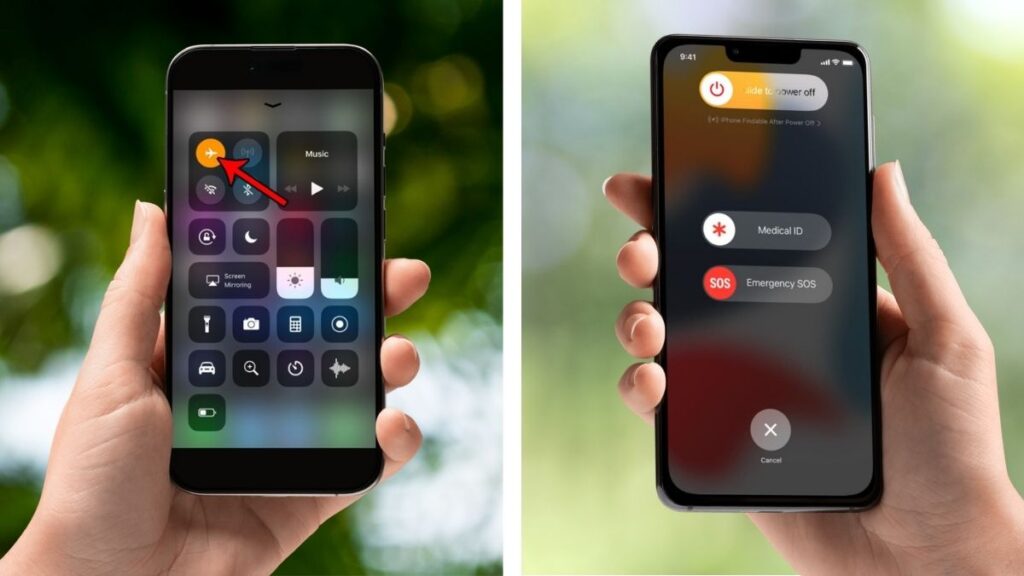
If your iPhone displays SOS mode, this indicates that you can solely make emergency calls and don’t have access to normal network services. This is normal and around 67% of iPhone users have experienced this at least one time. You’ve got a few ways to fix it.
Force restart
Press and hold the Side button, then slide to power off. Most of the time a simple restart or force restart does best. For iPhone 7, simultaneously hold the Volume Down and Power buttons together until the Apple logo appears. For iPhone 8 or later, press Volume Up, then Volume Down, then hold the Side button. Force restart resolves the problem roughly 60 percent of the time.
Connectivity problems
You can enable Airplane Mode, wait a minimum of 15 seconds, then disable it. Check for the SOS logo in the status bar. If it is gone, you are back online.
Look for any signal issues. Go somewhere with better coverage. Weak or no signal usually puts your iPhone in SOS mode. If you’re a traveler, ensure that your plan covers that region.
When it is a SIM problem, remove your SIM card and look for dirt or damage. If it appears okay, reinsert and reboot the phone. If your iPhone continues to display SOS, insert a different SIM card if possible.
System problems
Network fixes are helpful. Reset network settings by going to Settings > General > Transfer or Reset iPhone > Reset > Reset Network Settings. It won’t wipe your data, but it will remove Wi-Fi passwords.
Updating to the latest iOS has a 75% fix rate. If nothing works, try a reset all settings, though be aware you can lose some saved preferences. Finally, restore your iPhone in DFU mode, but this wipes everything, so back up beforehand. DFU restore works in about 95% of the hard cases.
If you don’t want accidental SOS, disable the rapid press method in Settings. If you still encounter problems, contact your carrier or an Apple Store.
SOS Mode While Traveling

When you’re traveling and your iPhone is temporarily switched over to SOS mode, it will tell you that you have no cell service but can still get emergency help.
This usually occurs when you travel to a different country where your carrier either doesn’t have coverage or roaming is disabled. Often, if roaming is expensive, you may disable it yourself, which again causes SOS mode. This is typical of international travelers who either cross borders or venture far away from cities.
SOS mode means your phone can still dial out to local emergency services, such as 911 in the US or 112 in Europe, even if you have zero coverage from your primary provider. This aids you in accessing assistance in multiple nations. For instance, in the US and Canada, you require iOS 16.1 or later to utilize Emergency SOS via satellite.
Australia, the UK, France, Italy, and Japan support this, so you can get help in more places around the globe. In the event that you have no Wi-Fi or cellular service, you can use SOS via satellite in supported countries. This allows you to text emergency services by addressing the words SOS, help, or emergency in the address of a new message.
The service operates in a variety of languages, including English, Canadian French, Dutch, French, German, Italian, Japanese, Portuguese, and Spanish, so more individuals can access assistance in their native tongue. If your iPhone is stuck on SOS mode, try to fix it by swiping down from the top-right corner, turning Airplane Mode on and off, or restarting your device.
A lot of people have had success leaving Airplane Mode on for 10 seconds, then turning it off again to get their connection back.
Avoid SOS Mode Abroad with Ubigi

Using your iPhone abroad can be stressful if you stumble upon the SOS mode. This generally implies that your device is unable to access your carrier, resulting in a data and call dead zone.
An eSIM like Ubigi saves you from these headaches by offering your phone a direct connection to local networks in over 200 countries.
When you have Ubigi, you don’t need a physical SIM card. Your iPhone joins the local network the moment you touch down, so you’re connected from day one. Ubigi’s eSIM enables you to configure mobile data directly on your device. No more waiting in line for a SIM.
Several travelers have confirmed their Ubigi eSIM gets the job done for them even in the boonies, not just in metropolitan centers. That’s less chance of drops or an SOS Only notice from your eSIM not being able to connect, as some users experience. If you encounter a connectivity issue, resolve it by activating Airplane Mode for 15 seconds and then deactivating it.
Benefits of Ubigi eSIM
Ensure your iPhone’s 3G and LTE options are enabled. Occasionally you’ll have to wait a minute or two for a solid connection, most likely if the network is still initializing. Roaming fees with your domestic carrier can be expensive. Ubigi has prepaid plans, so you just pay for what you use.
You receive transparent pricing, and you select the plan that suits your journey, no more fretting about surprise fees. Customers have applauded Ubigi for consistent, high-speed data in locations such as Japan and Spain. You can check a carrier’s cverage on the nperf website.
With instant activation, you’re able to open up your phone’s maps, email, or social apps immediately, wherever you are. If you encounter troubles during the installation or activation of your eSIM, check the tutorials on Ubigi YouTube channel.
Conclusion
SOS on your iPhone indicates the phone dropped its regular signal. It might be visible during travel or if your home network is experiencing an issue. You can remedy this by verifying your signal, toggling Airplane Mode, or rebooting your phone.
With eSIM providers such as Ubigi, you can maintain a consistent connection even abroad. We use iPhones daily to feel safe and connected, so understanding what SOS means can save you worry and lost minutes.
Remember these tips the next time that SOS sign shines its way in. For additional guides or straightforward assistance, see our complete resources. Be prepared and stay connected.
We hope that this article on the “Meaning of SOS on iPhone” helped you!

Frequently Asked Questions
What does SOS mean on your iPhone?
SOS means that your iPhone can’t find your normal mobile network. You can still make emergency calls.
Why is your iPhone showing SOS?
Your phone says SOS on iPhone when it can’t locate your carrier’s network. This is common in areas with low or no signal.
How do you fix SOS mode on your iPhone?
First, verify your coverage. It’s worth rebooting your iPhone or taking out and reinserting your SIM card. If the issue persists, get in touch with your carrier.
Can you use your iPhone while it shows SOS?
Yeah, you can make emergency calls. Most other services won’t function until you connect to a mobile network again.
Does SOS mode mean your iPhone is broken?
No, SOS mode doesn’t mean your iPhone is broken. It simply indicates that your phone can’t locate your carrier’s network.
What should you do if your iPhone enters SOS mode while traveling?
See if you can find any networks on your own by looking for available networks in your settings. If you are overseas, check your roaming options or try an international eSIM like Ubigi.
How can you avoid SOS mode abroad?
Use SOS on iPhone. This keeps your iPhone connected and prevents SOS mode in new countries.








 How to check eSIM compatibility
 How to check carrier unlocking