


Summary
- 1) Key Takeaways
- 2) 1. Check Carrier Lock in Settings
- 3) 2. Test with a Different SIM
- 4) 3. Confirm SIM and Model Compatibility
- 5) 4. Verify Through IMEI Lookup
- 6) 5. Verify with your carrier
- 7) 6. Use online unlocking tools
- 8) 7. Consider Professional Unlocking Services
- 9) Conclusion
- 10) Frequently Asked Questions
Key Takeaways
- Looking for “Tips to Tell if Your iPhone is Unlocked” ? This article is for you ! You can easily see if your iPhone is unlocked by looking at the “Carrier Lock” status on your device in Settings > About.
- Trying your iPhone out with other carriers takes the speculation out and confirms that your phone is able to take networks globally.
- Confirm that any SIM card or eSIM (like the ones from Ubigi) you utilize is compatible with your iPhone model and has an active mobile plan.
- Reach out to your carrier for formal proof of that unlock status and request some paperwork for your files.
- Test out trusted digital tools or official unlock services for further confirmation, but as always, check for any fees or conditions.
- When you know your iPhone is unlocked, you avoid network limitations and gain the freedom to travel abroad or switch carriers smoothly.
Here’s how to figure out if your iPhone is unlocked. Look for signs in your device settings, test with different SIM cards, or check your carrier’s website. Follow these steps for quick ways to confirm your unlock status.

1. Check Carrier Lock in Settings
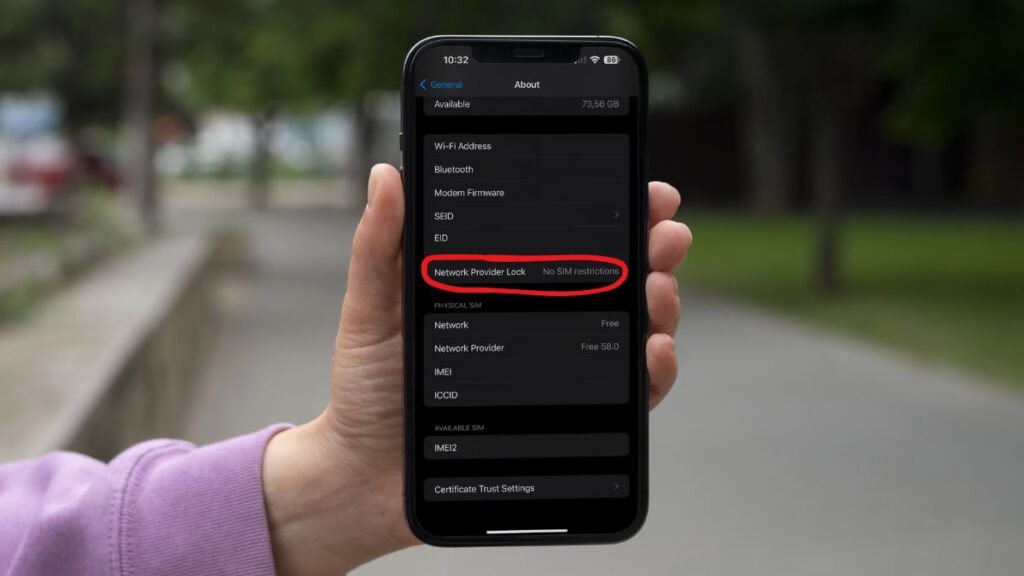
To confirm whether your iPhone works with any SIM card, open Settings > General > About and scroll to Carrier Lock.
If it says ‘No SIM restrictions,’ you have an unlocked iPhone that works with any network provider, sim card, or eSIM—ideal for switching to a different carrier or international travel. If it displays ‘SIM Locked,’ your locked iPhone is restricted to one carrier and cannot use other sim cards. In this case request an unlock using your IMEI if needed.
Always verify your unlock status and carrier lock in settings so your phone remains flexible for upgrades and travel.
2. Test with a Different SIM
The most reliable way to confirm your iPhone’s status is to test it with SIM cards from different carriers. Pop in a SIM from a different carrier–perhaps a friend’s or a prepaid SIM. If your iPhone takes the new SIM you ought to see the carrier name change and you can attempt a call or use data.
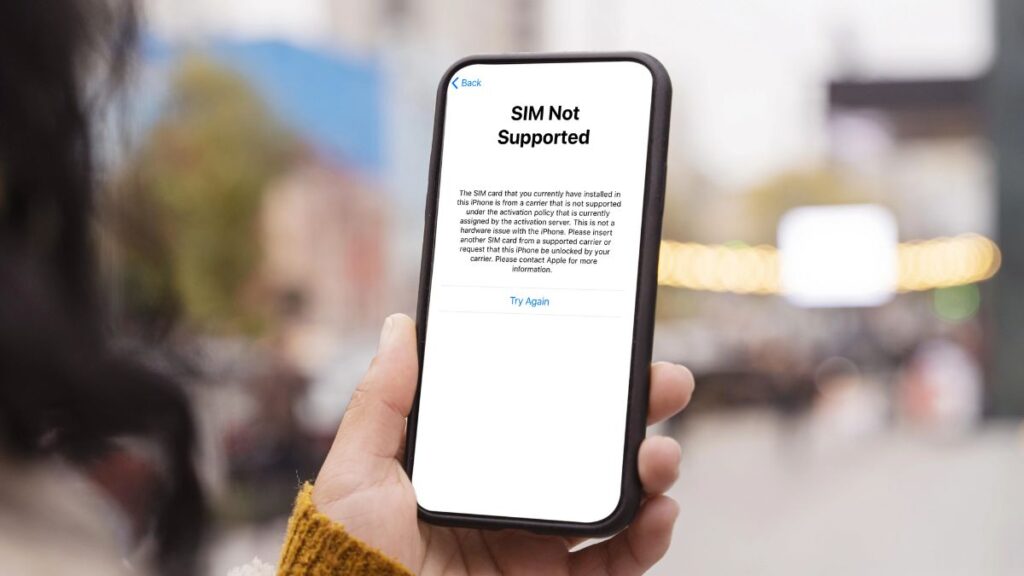
Some users test this by using a foreign carrier’s SIM while traveling. If you see error messages like “SIM Not Supported” or “Invalid SIM,” your phone may be locked.
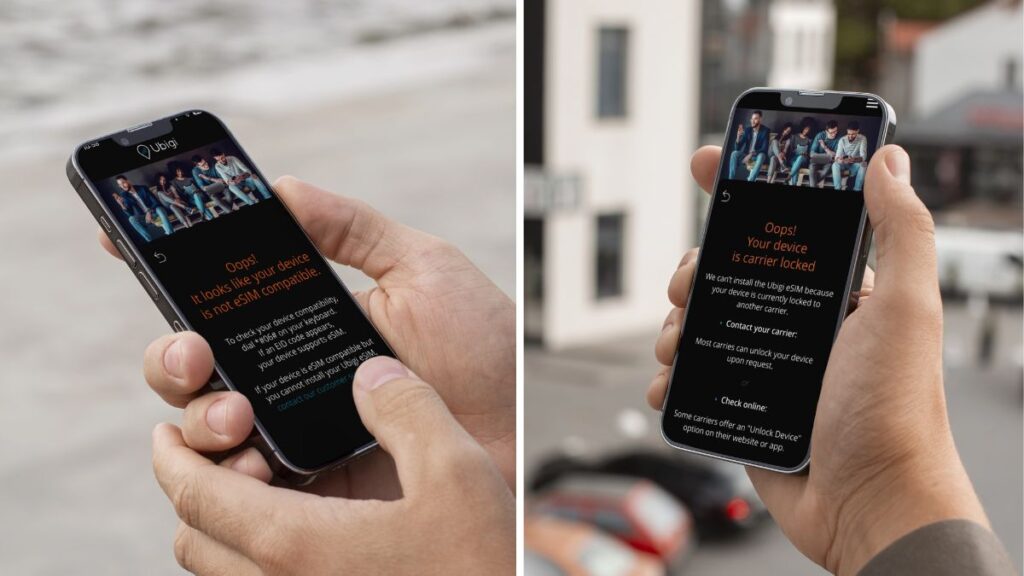
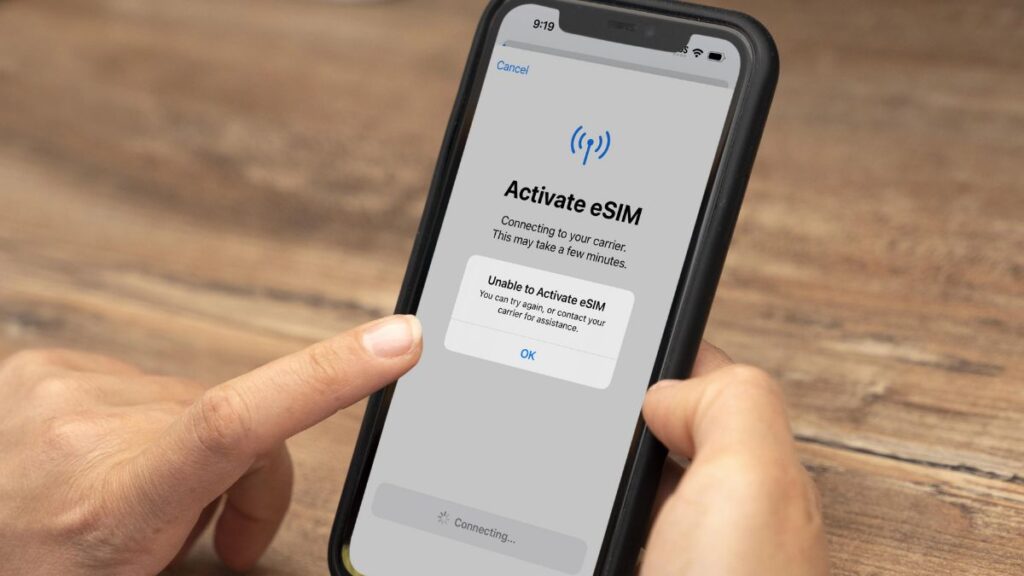
Test with different carriers to be sure, since some networks have unique settings. You can test an eSIM, for example Ubigi. If your phone is locked, you cannot complete the setup or purchase a data plan on the Ubigi app.
3. Confirm SIM and Model Compatibility
Before assuming the phone has a lock, make sure the SIM card you inserted works with your iPhone model. Some devices only accept nano SIMs, while newer models support eSIM.
If a valid, active SIM card still displays errors (SIM Not Supported), the issue is likely due to carrier lock, not hardware.
4. Verify Through IMEI Lookup
Your iPhone’s IMEI number (international mobile equipment identity) is a unique identifier for checking unlock status or carrier lock. To find it:
- Dial the free shortcut *#06# or find it in Settings > General > About.
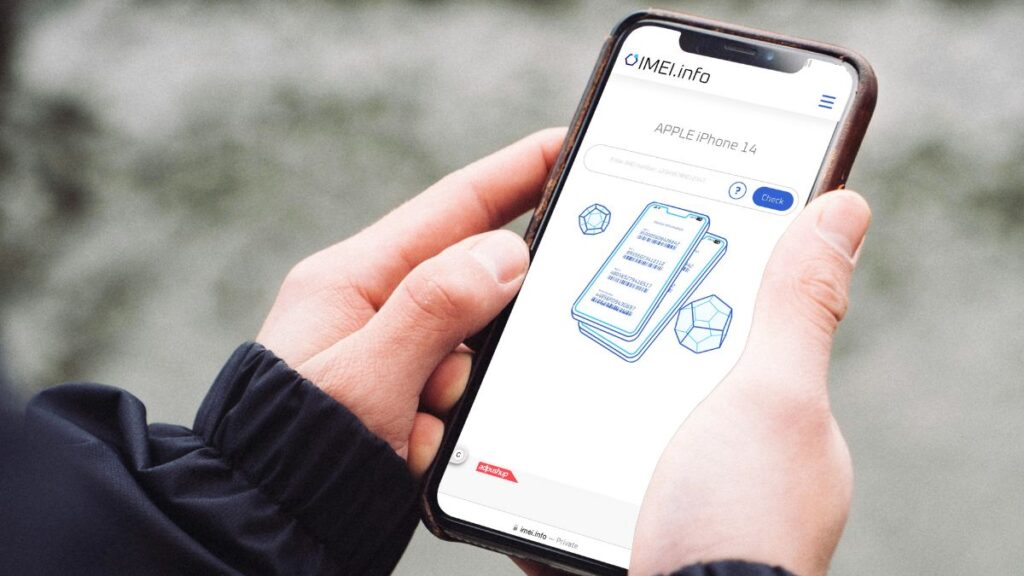
You can then enter your serial number or IMEI on carrier websites or trusted third-party IMEI checkers like online IMEI checker tools. Results usually indicate whether the device is unlocked or restricted by sim restrictions. This step is especially useful if you are planning to buy a used iPhone or want to confirm your unlock status before switching carriers.
Checking the IMEI number helps avoid locked phones and ensures compatibility with your network provider or mobile data plans.
5. Verify with your carrier
Contacting your carrier gives you a direct answer about your iPhone’s unlock status. Call customer service and give them your phone’s IMEI number, which you can find in the device’s settings or by dialing the shortcut *#06#.
The carrier checks their records and tells you if your iPhone works on any network or has a lock. This step helps when you want to switch carriers or buy a used phone, since some iPhones start out locked but carriers unlock them once the contract ends.
In many countries, resellers usually sell unlocked iPhones, but confirming with the carrier removes uncertainty. For example, carriers in China most of the time sell eSIM-locked iPhones.
Carriers may have specific unlocking requirements, policies, or waiting periods, so it’s wise to inquire about any paperwork or delays. You can also request written confirmation of the unlock status for your records, which is useful if issues arise later.
6. Use online unlocking tools
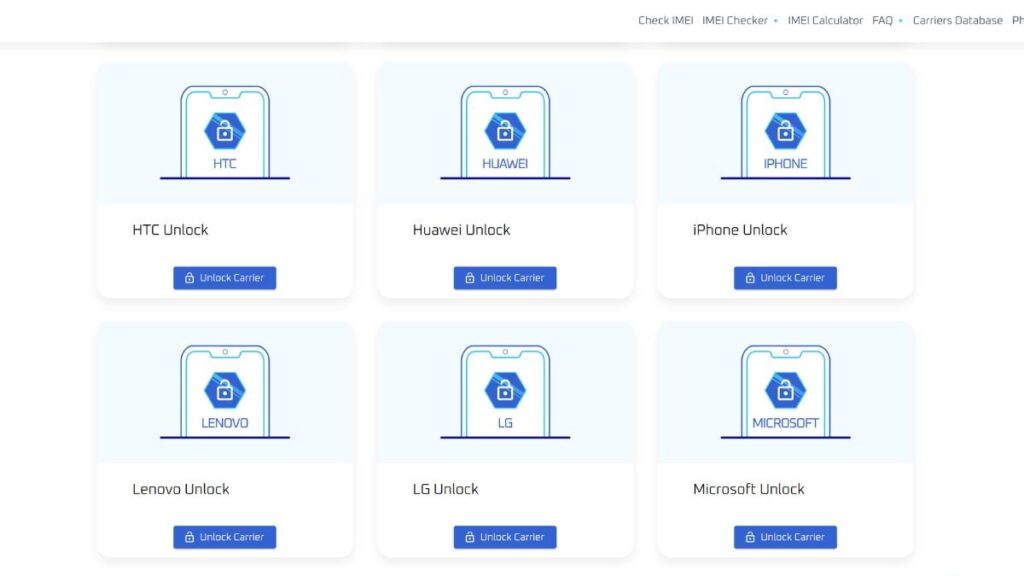
Online unlocking tools may offer a quick check on your iPhone’s lock status. Trusted sites such as IMEI.info or carrier’s official sites allow you to input your IMEI number and proceed with their instructions.
Immediately after, you receive information concerning whether your phone is carrier-locked or not. If you’re purchasing a used iPhone (particularly from an individual) these tools save you from unexpected issues.
Outcomes will vary, so it’s wise to test two or three different online unlocking services to see if they concur. Many tools work well, but some require a small fee.
Remember, some models or carriers block these checks, and not all tools are completely accurate when confirming unlock status or carrier lock.
7. Consider Professional Unlocking Services
If online checks or carrier support don’t resolve your case, specialized unlocking services are another option. For starters, look into legitimate unlocking services that follow carrier guidelines, and search for transparent policies and feedback.
Bring identification like your ID and a receipt, as most providers require these for verification. There are usually fees, ranging from a few to several hundred euros depending on your iPhone model and carrier.
The process can take a few hours or days, so manage your expectations. Ensure the service supports your iPhone model and network provider.
Be cautious: unreliable services can void your warranty or scam you. Unlocking stolen devices is illegal and can cause complications with carriers or network providers.

Conclusion
If you want to check if your iPhone is unlocked, use these tips! The first easy step is to check for carrier lock in your settings. Test other phone companies’ SIM cards to confirm.
There are online tools and unlocking services that can assist as well—choose ones with a solid track record.
An unlocked phone lets you choose your carrier, get the best price, and travel with your phone. You can switch to more affordable plans, travel less stressed, or lend your phone to friends from abroad.
For wise decisions, verify every step and inquire if you’re uncertain. To maximize your device’s potential, keep evolving and use these pro tips to maintain control over your unlock status and carrier lock.
We hope that this “Tips to Tell if Your iPhone is Unlocked” helped you solved your problem!

Frequently Asked Questions
How can you check if your iPhone is unlocked without a SIM card?
Just head over to Settings > General > About. Search for ‘Carrier Lock’. If it reads No SIM restrictions, your iPhone has an unlocked status. You don’t need a SIM card for this.
Will using a SIM card from another carrier damage your iPhone?
No, it won’t hurt your iPhone to put in a SIM from another carrier. It’s a secure method to verify that your phone has an unlocked status and available for use on other networks.
Can you unlock your iPhone for free?
Occasionally, you can unlock your iPhone at no charge by reaching out to your initial carrier. They might unlock your phone if you satisfy their criteria (eg. You finished your contract).
What does “Carrier Lock” mean in your iPhone settings?
“Carrier Lock” indicates whether your iPhone is locked to a specific carrier. If you see ‘No SIM restrictions’ your iPhone has an unlocked status and will work with any supported carrier.
Do online unlocking tools work for all iPhones?
Online unlockers won’t work for all iPhones, especially newer ones. Don’t get scammed, always look up and use reliable services.
Will unlocking your iPhone erase your data?
No, unlocking your iPhone will not wipe your data. It’s secure, but smart to backup before you begin.
Is it legal to unlock your iPhone?
Indeed, it’s perfectly legal to unlock your iPhone in most countries. Do check your local laws and your carrier’s policies to be safe.








 How to check eSIM compatibility
 How to check carrier unlocking