


Summary
- 1) Key Takeaways
- 2) 1. Airplane Mode is Enabled
- 3) 2. Cellular Data is Turned Off
- 4) 3. Data Roaming Disabled
- 5) 4. Software Update Required
- 6) 5. Carrier Settings Update Pending
- 7) 6. SIM Card Issues
- 8) 7. Network Settings Reset Needed
- 9) 8. Faulty Hardware or Antenna
- 10) Conclusion
- 11) Frequently Asked Questions
Key Takeaways
- Fix your connectivity issues with this “Reasons Why Your Cellular Data is Not Working on iPhone and How to Fix It” article ! Whenever you experience cellular data connectivity issues on iPhone, always verify Airplane Mode is off and restart your device to restore cellular connectivity.
- If you have your iPhone set to disable cellular data when possible, check that it’s enabled in Settings > Cellular Data and that apps are allowed to use it.
- If you’re on the go, turn on Data Roaming or even better, book an international eSIM data plan to avoid surprise bills.
- Ensure your iPhone has the latest iOS and carrier settings updates to optimize network performance and patch bugs.
- Check your SIM card for damage or if it’s not seated correctly, and switch to an Ubigi eSIM if your SIM card has stopped working.
- Reset your network settings if you continue to have connectivity problems and get professional assistance if hardware issues are suspected.

Cellular data issues on iPhone could block you from web browsing, streaming, or sending messages when you require them most. Most of you experience dropouts, slow speed or complete loss of data, even with good signal.
Real fixes typically begin with the easy things you can do in minutes. For casual users or harried pros, this article reveals real-world solutions that have your iPhone back online quickly.

1. Airplane Mode is Enabled
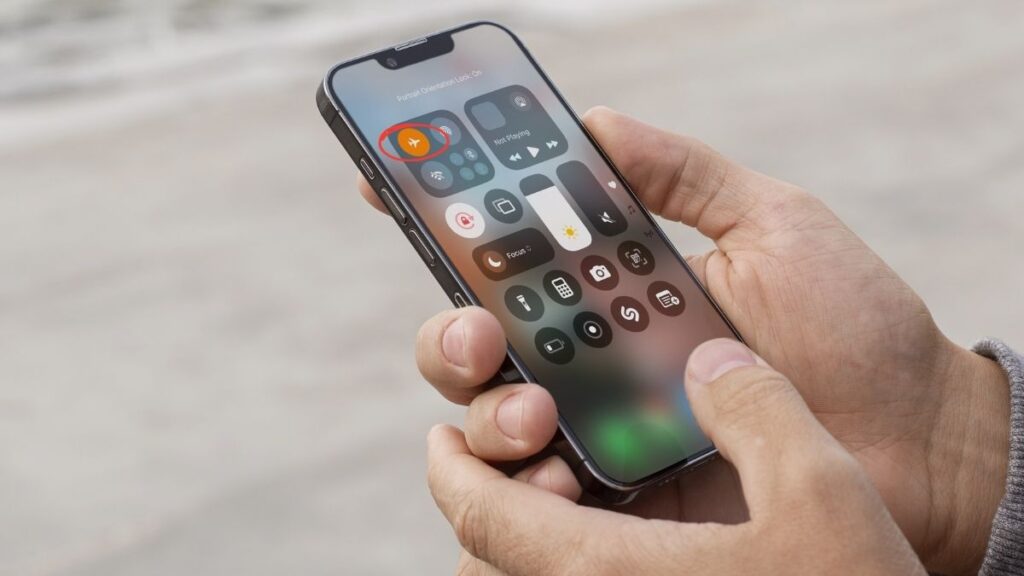
Airplane Mode can block cellular data. It’s an easy first checkpoint when you encounter network trouble. When Airplane Mode is enabled, you lose your internet and mobile connection. The airplane icon in Control Center indicates whether this mode is enabled.
For instance, if you swipe down and see the airplane icon is orange, then Airplane Mode is on. It’s turning it off that restores your connection. You can do this through iPhone settings or the Control Center, then toggling it from ON to OFF.
If that problem persists, toggle Airplane Mode ON, wait a few seconds, then OFF again. This can restart your iPhone’s connection to the cellular network. Restarting your device after switching Airplane Mode on and off could assist.
For some users, these easy checks can resolve the majority of connection glitches without further action.
2. Cellular Data is Turned Off
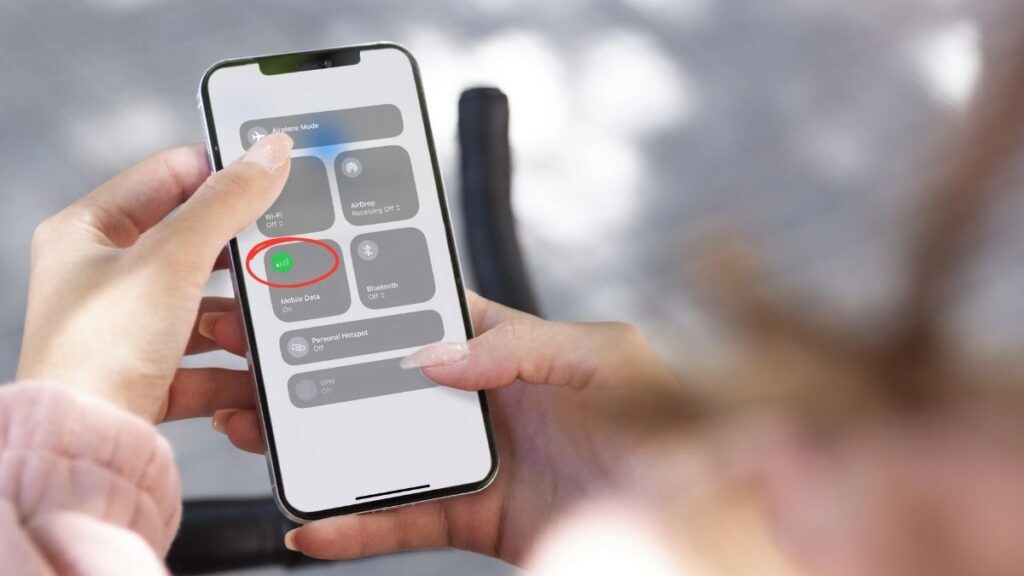
“Cellular Data is Turned Off” will frequently prevent your iPhone from utilizing mobile internet. It will effectively disconnect you unless you’re within reach of a Wi-Fi connection. Go into Settings and tap Cellular. Then, ensure the Cellular Data switch is in the ‘on’ position.
A glance at your screen’s top corner assists as well. If all is working properly, you’ll see the signal bars and a little cellular icon pop up. Every now and then, you could accidentally toggle Airplane mode that shuts off cellular data immediately.
Turning Airplane mode off and on again can reboot your connection. Not every app gets to use mobile data unless you permit it. Scroll down in the Cellular menu to make sure your essential apps are configured for Cellular Data077.
If Cellular Data remains off, your phone may function with Wi-Fi, but other updates or app functionality require mobile data to operate correctly.
3. Data Roaming Disabled
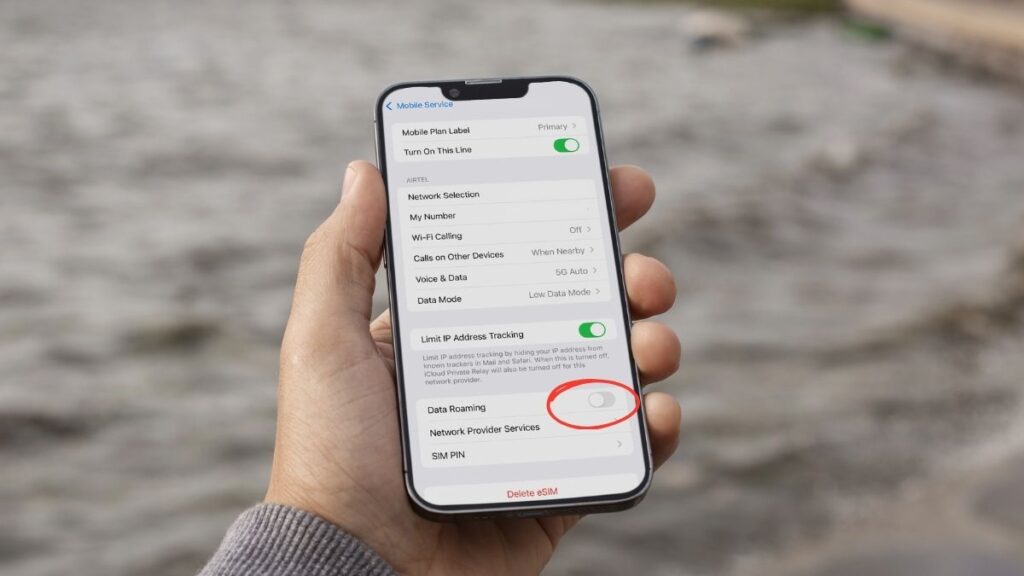
Third, Data Roaming Disabled, a frequent culprit behind lost cellular data when you travel. Just pop into your iPhone’s Settings, then Cellular and Cellular Data Options to check that data roaming is off. When roaming is off, your phone blocks data so you don’t get extra fees, but that means no coverage anywhere your home network isn’t available.
For travelers, booking an Ubigi eSIM data plan offers local data without expensive roaming charges. Simply configure it as your primary data source in settings. Always check your mobile plan to see what roaming will cost you, as rates vary widely by country and provider.
Some phones or iOS versions freak out with roaming off and cause network / APN issues. Resetting network settings and double checking APN details can sort these out. Other times, disabling roaming actually helps your battery and keeps your phone purring.
4. Software Update Required
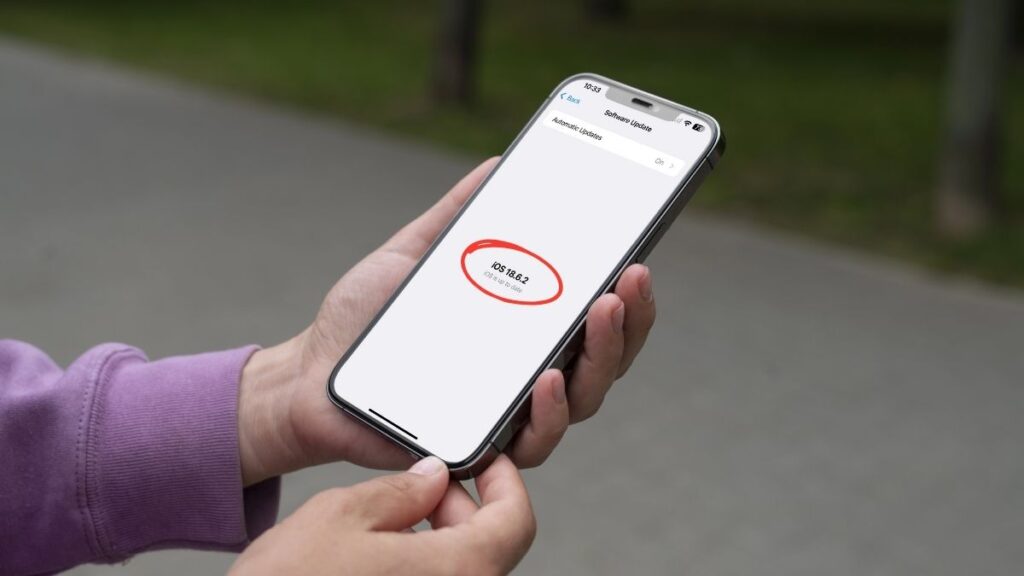
Then, system update is the magic bullet to fixing a lot of connectivity problems. A glance at Settings app > General > Software Update provides a quick way to identify and install any outstanding patches. Having the latest iOS typically patches bugs that interfere with cellular data, fixes conflicts with SIM cards, and improves performance.
For instance, updating your iPhone can resolve issues stemming from modem firmware or network glitches impacting your signal. Others encounter new glitches post-update, such as network configurations altering or data falling out. Should that occur, flipping Airplane mode on/off, rebooting your phone, or a network settings reset can come to the rescue.
These monthly refreshes keep your system stable and reduce random issues. By scheduling updates, you’re less likely to miss crucial fixes. So if you catch data behaving strangely immediately following an update, some simple verifications or manual adjustments frequently do the trick.
5. Carrier Settings Update Pending
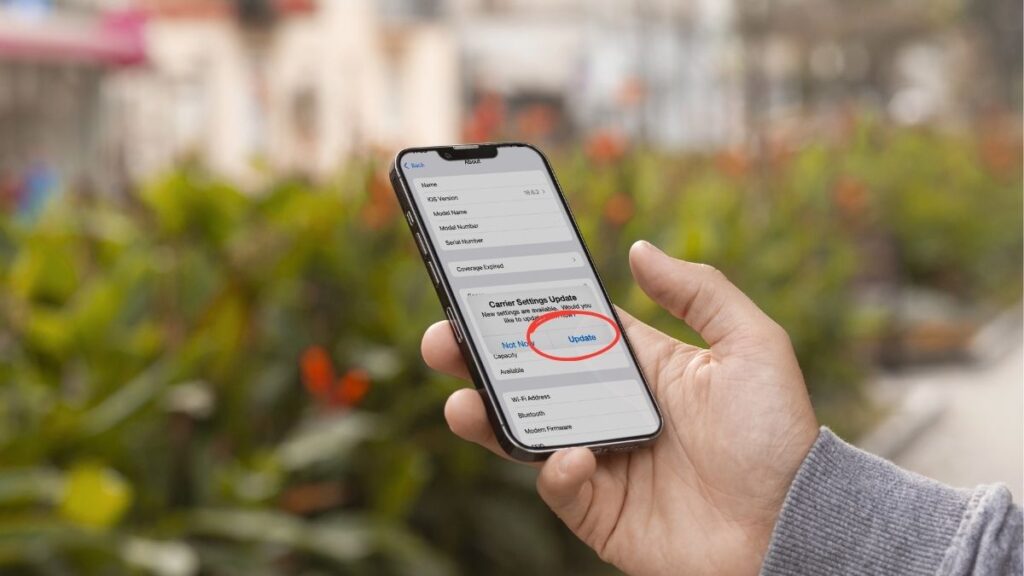
Mobile carrier Settings Update Pending typically indicates your iPhone requires updated network information to maintain calls, texts, and data functioning properly. You can look for it in Settings > General > About.
If a pop-up displays ‘Carrier Settings Update Pending,’ your cellular network is transmitting a tiny file to assist your phone in communicating more effectively with nearby towers. If you skip this update, you can experience dropped calls, slow internet, or SMS delays.
They generally just install themselves, although occasionally you have to tap ‘Update’ or ‘Install’ when it asks. Ensure your iPhone is either on Wi-Fi or has a solid data signal to fetch the update.
Once installed, a quick reboot gets things rolling. For those of you still suffering, attempt to reset network settings. Carrier updates can fix a lot of bizarre glitches, particularly after swapping SIMs or traveling.
6. SIM Card Issues
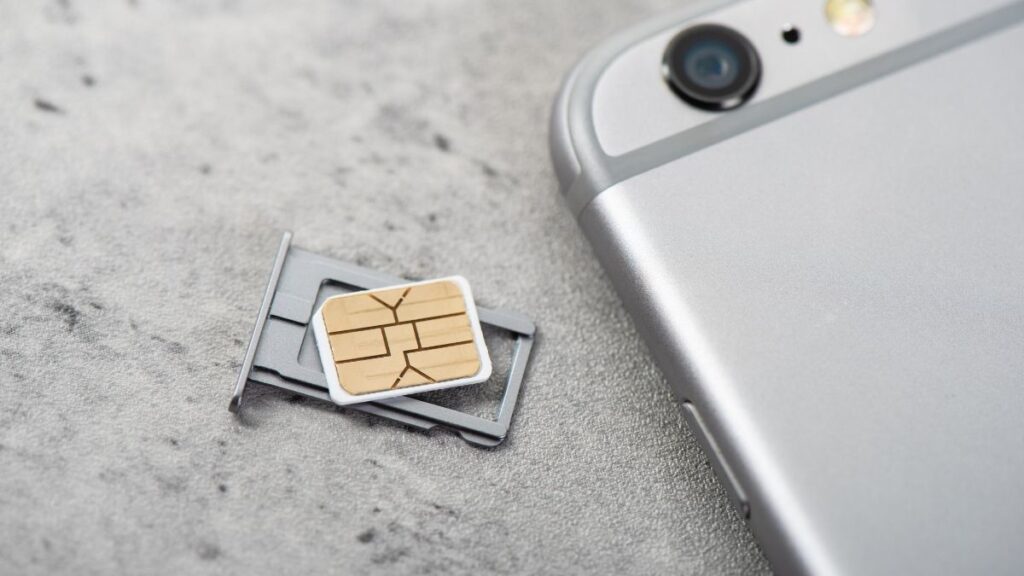
Physical SIM card problems is commonly featured as a culprit behind data issues. Just like clearing your lint trap, making sure the SIM card sits snug and clean keeps your connection steady. Dirt or a loose SIM card can sever your network, so users frequently remove it, clean it with a gentle cloth and replace.
Flipping Airplane mode on and off can occasionally nudge a stuck connection. When the issue persists, SIM removal (waiting a minute or so and then reinserting after shutting off) does the trick for most. Testing your SIM in another phone tests whether the card or phone is to blame.
Others see their problems arise in rural or isolated locations with poor signal, and thus slow data. If your SIM is toast, an Ubigi eSIM data plan from the Ubigi App provides immediate relief and more freedom.
7. Network Settings Reset Needed

Next, Network Settings Reset provides a clean slate for your iPhone’s connections. Navigating to Settings > General > Reset presents the option to reset network settings. When you do this, your saved Wi-Fi passwords and paired Bluetooth devices are wiped.
Then you have to rejoin Wi-Fi networks and re-pair Bluetooth devices. This step gets at lingering problems that toggling Airplane Mode or checking APN settings just don’t cure. If you can’t connect to cellular data or Wi-Fi, this reset regularly rinses out misconfigured settings that interdict your connection.
This procedure varies slightly depending on your iOS version, so keep an eye out for menu variations. Be sure to always reboot your iPhone after the reset to ensure it obtains a fresh start with networks.
8. Faulty Hardware or Antenna
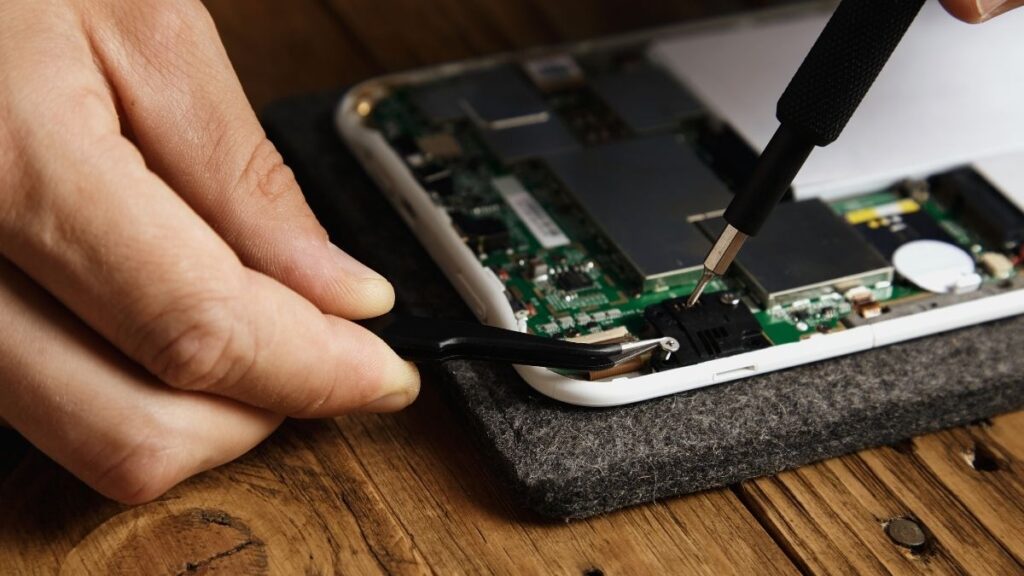
Faulty hardware or antenna issues can cause persistent connectivity problems. You may see your signal strength bounce from full to low without making a step, or your calls drop frequently even in open areas.
Cell phones with faulty hardware or antenna can exhibit slow data speeds, GPS problems, or low reception. Sure, a reboot or soft reset can solve the odd momentary glitch but persistent problems usually indicate something more serious.
If you notice symptoms such as dropped calls or data loss, your phone might have suffered internal damage from drops or water. Hardware can fail from wear and tear or rare manufacturing defects.
For a true diagnosis, phone repair shops can test antennas and other components. If your phone is still under warranty, repairs or replacements may come at no cost.
External influences, such as thick structures or metallic items, may degrade signals as well but won’t induce permanent hardware damage.
Conclusion
Cellular data is where things can get tricky fast on your iPhone. One easy toggle (like Airplane Mode or a forgotten update) can derail your signal. Other times, you discover the SIM card rattles loose or your network requires a quick adjustment.
A full factory reset could help things freshen up. Once in a great while, a little hardware tweak returns the bars. Every fix on our list comes in simple steps you can attempt yourself, no geek-speak required.
So next time your phone falls out, you’ll know what to check first. Stay on your toes with these tips in your back pocket. For additional quick fixes and smart phone assistance, browse our other guides.
We hope that this “Reasons Why Your Cellular Data is Not Working on iPhone and How to Fix It” article helped you solve your issues !

Frequently Asked Questions
Why is my iPhone not connecting to cellular data?
See if Airplane Mode is on or Cellular Data is off. Verify your SIM card is secured and your software is updated. These are dumb connectivity issues.
How do I enable data roaming on my iPhone?
Navigated to Settings > Cellular > Cellular Data Options. Turn on data roaming. This permits your iPhone to access cellular data when you’re abroad.
What should I do if my iPhone says “No SIM” or “Invalid SIM”?
Take out your SIM card, lightly clean it, and reinsert. If it persists, swap in a different SIM card if you have one. Call your carrier if it isn’t.
How can I update carrier settings on my iPhone?
Connect your iPhone to Wi-Fi or data. Navigate to Settings > General > About. If there’s an update, a prompt will pop up. Touch ‘Update’ to install the new carrier settings.
Will resetting network settings delete my personal data?
No, a network reset will simply remove Wi-Fi passwords, VPN, and Bluetooth connections. Your photos, contacts and other data will be safe.
What if a software update is not available but I still have issues?
Reboot your iPhone and review for carrier updates. If issues continue, reach out to your carrier or Apple Support for assistance.
Can hardware issues cause cellular data problems on my iPhone?
Yes, bad hardware or a broken antenna can cause problems. If you’ve exhausted all software fixes, head to a certified repair center for a professional check.








 How to check eSIM compatibility
 How to check carrier unlocking